

Imagine working on a crucial document only to find it corrupted when you need it most. Let’s ensure you’re never caught off guard again.
Understanding File Corruption
File corruption is like a digital gremlin that sneaks into your files, rendering them unusable or incomplete. It can happen to anyone and often strikes at the most inconvenient times. Understanding the causes and signs of file corruption can help you take proactive measures.

Common Causes of File Corruption
File corruption occurs for several reasons, ranging from hardware failures to software glitches. Here are some common culprits:
- Power Outages: Unexpected power loss can interrupt file operations, leading to corruption.
- Malware Attacks: Viruses and malware can damage files by altering their structure.
- Hardware Failures: Defective hard drives or memory components may cause data errors.
- Software Crashes: Applications crashing during file saving can leave files in an incomplete state.
Identifying Corrupted Files
Wondering if your file might be corrupted? Here are some tell-tale signs:
- Error Messages: If you see “file cannot be opened” or similar alerts, corruption is possible.
- Strange Characters: Files displaying random symbols or characters might be corrupted.
- Inaccessibility: Files that crash programs when opened often indicate corruption.
Step-by-Step Guide to Fix Corrupted Files
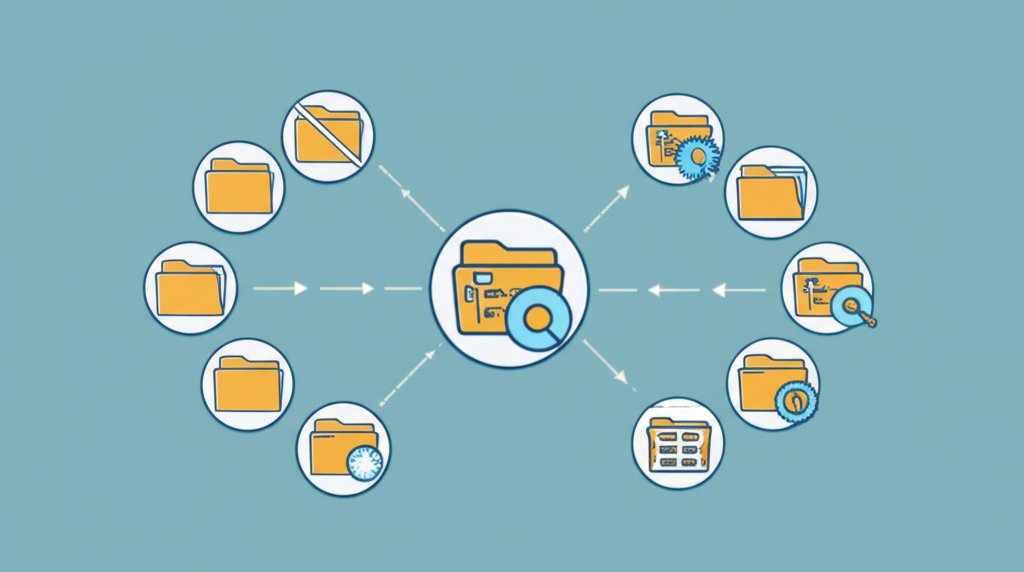
Once you’ve identified a corrupted file, the next step is repair. Here’s how to get rid of corrupted files using various methods.
Using System File Checker and DISM
The System File Checker (SFC) and Deployment Imaging Service and Management Tool (DISM) are powerful utilities that can repair system files.
- Run SFC: Open Command Prompt as administrator and type
sfc /scannow. This scans and repairs corrupted system files. - Run DISM: If SFC doesn’t solve the issue, enter
dism /online /cleanup-image /restorehealth. This command repairs the Windows image and should resolve deeper issues.
Alternative Recovery Tools
If the corrupted files aren’t system-related, consider using third-party recovery tools. Here are some top choices:
| Tool | Features | Best For |
|---|---|---|
| EaseUS Data Recovery Wizard | Recovers deleted, formatted, or inaccessible data from multiple devices. | General file recovery |
| Stellar Data Recovery | Offers advanced scanning for deeply corrupted files. | Severe file corruption |
| Recuva | User-friendly interface with quick scan options. | Beginners |
Preventive Measures to Avoid Future Corruption
Avoiding file corruption in the future is all about maintenance and preparedness. Here’s how you can safeguard your data.

Regular Maintenance Tips
- Update Software Regularly: Keep your operating system and applications up-to-date to prevent bugs that could cause corruption.
- Avoid Sudden Shutdowns: Always shut down your computer properly to avoid abrupt interruptions in file writing processes.
- Run Antivirus Scans: Regular scans help detect and remove malware that might corrupt files.
Backup Solutions
The best defense against data loss is a good backup strategy. Consider these practices:
- Cloud Backups: Use services like Google Drive or Dropbox for automatic and accessible backups.
- External Drives: Regularly back up critical files to an external hard drive.
- Create Recovery Points: Use system restore points as a safeguard against software-induced corruption.
Case Studies and Success Stories
The following real-world examples showcase how effective strategies can recover seemingly lost data.
Case Study 1: Recovering Business Documents
A small business faced potential disaster when their financial spreadsheets became corrupted after a power outage. By employing a combination of SFC, DISM, and Stellar Data Recovery, they successfully restored the files without any data loss. This case underscores the importance of having a multi-layered recovery strategy.
Case Study 2: Personal Data Recovery
An individual lost access to cherished family photos due to a malware attack. By using EaseUS Data Recovery Wizard, they retrieved over 90% of the images. The key takeaway here is regular backups could have mitigated the initial panic and stress.
Tools and Resources
Navigating file corruption doesn’t have to be daunting with the right tools and community support at your disposal.
Top File Recovery Software
- EaseUS Data Recovery Wizard: Best for comprehensive recovery across various devices.
- Stellar Data Recovery: Ideal for advanced users needing deep scanning capabilities.
- Recuva: Perfect for quick and straightforward recovery tasks.
Helpful Online Communities
If you need guidance, online communities can be a lifeline. Consider joining forums like Tech Support Guy or Reddit’s r/techsupport for advice and support from fellow users who have faced similar challenges.
You’ve got the tools and knowledge to conquer file corruption. Now, why not start by backing up your most critical files today?
Frequently Asked Questions
What causes files to become corrupted?
Files can become corrupted due to power outages, malware attacks, hardware failures, or software crashes during file operations.
How can I fix a corrupted file?
You can use tools like System File Checker (SFC) and DISM for system files or third-party recovery software like EaseUS or Stellar for non-system files.
Can all corrupted files be repaired?
Not all corrupted files can be repaired, especially if the damage is severe. However, many can be restored with the right tools and methods.
What are some preventive measures against file corruption?
Regularly update software, avoid abrupt shutdowns, perform frequent antivirus scans, and maintain reliable backup solutions to prevent file corruption.
Which recovery tool is best for beginners?
Recuva is an excellent choice for beginners due to its user-friendly interface and straightforward recovery process.
How often should I back up my files?
It’s recommended to back up essential files weekly, though daily backups are ideal for critical data to minimize loss risks.
Can I use cloud storage as a backup solution?
Yes, cloud storage services like Google Drive or Dropbox offer convenient backup options with automatic syncing features to protect your data.
“`