
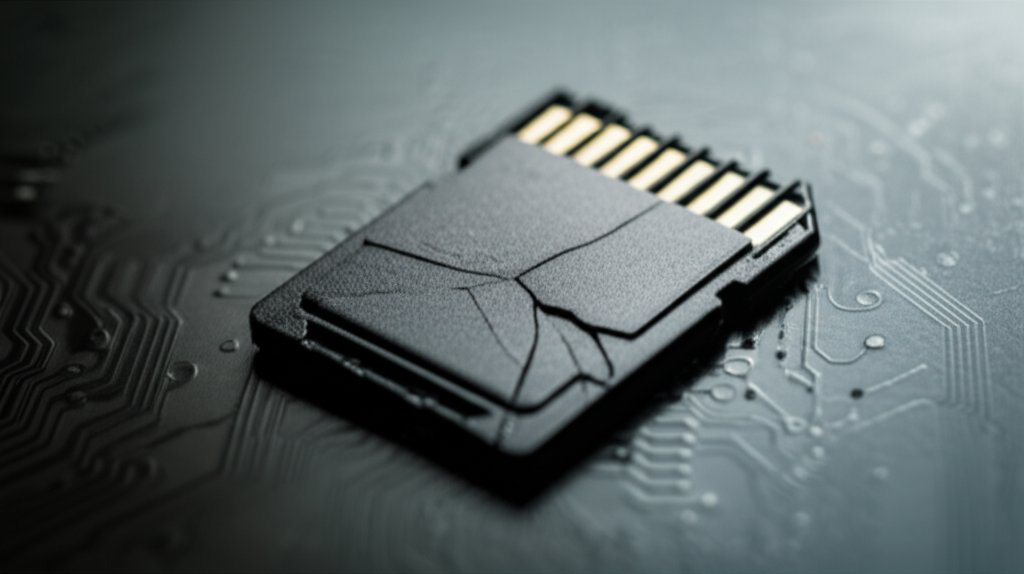
Imagine losing all your precious data in a flash. It’s a scenario that can send a shiver down your spine, but here’s how you can save the day. Whether it’s cherished photos, important documents, or crucial work files, knowing how to retrieve files from a corrupted SD card is essential in today’s digital age. This guide will walk you through everything you need to know, ensuring you’re well-equipped to tackle any SD card mishaps.
We’ll start by helping you understand what SD card corruption is, exploring the different types and common causes that might lead to such unfortunate events. Recognizing the signs of corruption early on, like unexpected error messages or sluggish performance, is crucial in preventing data loss. Once you suspect an issue, taking immediate action is key. You’ll learn the critical first steps, including how to safely remove and back up your data.
But what if your data seems lost? Don’t worry; we’ll delve into effective recovery methods, using both software solutions and manual techniques. To avoid future headaches, you’ll also gain insights into proper handling and regular maintenance of your SD cards. Plus, we’ll review tools to help you make informed decisions and provide expert advice to steer clear of common pitfalls.
With real-life recovery stories included, this guide isn’t just theoretical but a practical resource to help you protect your digital life. So let’s dive in and ensure you’re prepared for whatever technical challenges come your way!
Understanding SD Card Corruption
SD card corruption is a frustrating experience that can lead to the loss of irreplaceable data, whether it’s your holiday photos or critical work documents. But what exactly does it mean when an SD card is corrupted? In simple terms, corruption occurs when the data on the card becomes unreadable or inaccessible. This can manifest as missing files, files that won’t open, or complete device inaccessibility.
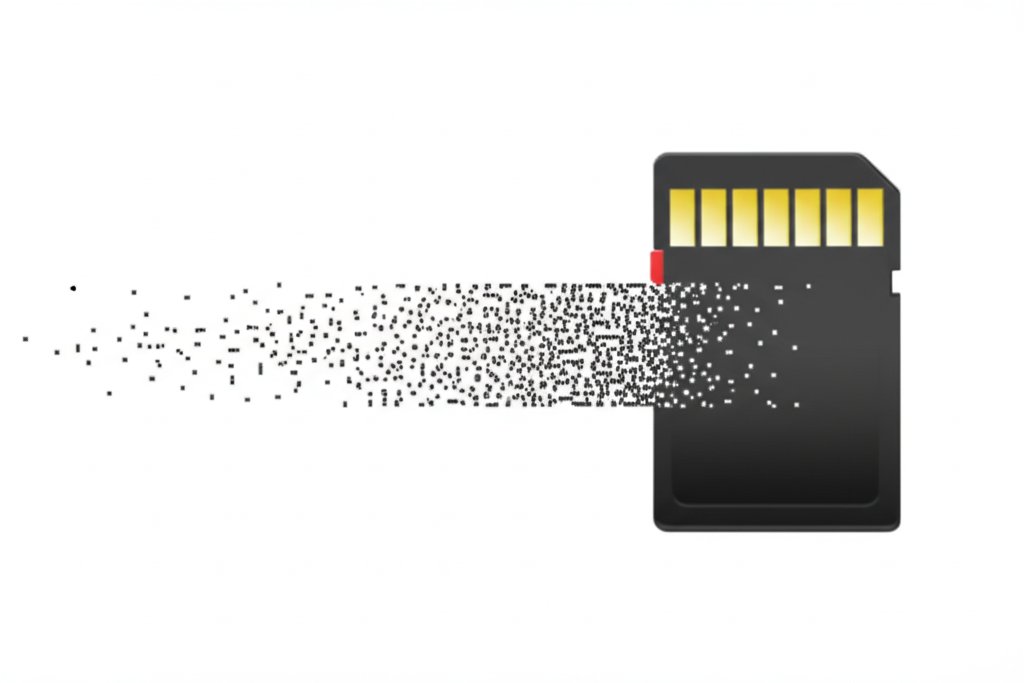
Types of Corruption
Understanding the different types of SD card corruption is crucial to knowing how to retrieve files from a corrupted SD card effectively. Here are the common types:
- File System Corruption: This occurs when the file system of the SD card becomes damaged. The file system acts like a map that tells your device where specific data is stored. When this map is damaged, your device can’t find the files.
- Logical Corruption: This type of corruption is less about physical damage and more about errors in the way data is written or read. It includes issues like bad sectors, which are areas on the card that can no longer be used for storage.
- Physical Damage: Although not technically ‘corruption,’ physical damage to the card can result in corrupted data. This includes scratches, bends, or exposure to water.
Common Causes
Now that you know the types of corruption, it’s important to understand what causes these issues. Knowing the causes can help you prevent future problems and maintain the integrity of your data.
- Improper Ejection: Removing an SD card without safely ejecting it from your device can lead to corruption. This interrupts ongoing processes and can damage the file system.
- Virus or Malware: Connecting your SD card to an infected computer can transfer viruses or malware onto your card, corrupting files and making them inaccessible.
- Power Surges: A sudden loss of power while transferring data can result in incomplete writing processes, leading to corrupted files.
- Exceeding Write Cycles: Like any flash memory, SD cards have a finite number of write cycles. Over time, this limit can be reached, and sectors may no longer function properly.
Let’s take a closer look at how these factors compare in terms of impact and frequency.
| Cause | Impact on Data | Frequency |
|---|---|---|
| Improper Ejection | High – Can lead to file system corruption | Common |
| Virus or Malware | Medium – Files may become inaccessible | Less Common |
| Power Surges | High – May result in incomplete data writing | Uncommon |
| Exceeding Write Cycles | Low – Gradual degradation of sectors | Rare |
Understanding these causes not only helps in preventing future issues but also provides insight into tackling existing problems. As you move forward, you’ll learn about immediate steps to take when your SD card is corrupted and how to retrieve files from a corrupted SD card using different techniques. Armed with this knowledge, you’re better prepared to protect your data and maintain your peace of mind.
Signs Your SD Card Might Be Corrupted
Spotting the signs of a potentially corrupted SD card early can save you a lot of headaches down the line. The sooner you identify these issues, the better your chances of retrieving your valuable data. Here’s what to look out for when determining if your SD card might be in trouble.
Error Messages
Error messages are often the first and most obvious indicators that something is amiss with your SD card. These messages can pop up on a variety of devices, from your smartphone to your digital camera, and they typically indicate that the system is having trouble reading or writing data to the card. Here are some common error messages you might encounter:
- “Card Error”: This is a generic message that suggests your device cannot access the card.
- “Read/Write Error”: Indicates problems with either reading from or writing to the SD card.
- “Card Not Initialized”: Suggests that the card needs formatting or there’s a connection issue.
- “File System Error”: Points to a possible corruption in the file system structure of the card.
If you encounter any of these errors, it’s crucial not to format the card immediately, as this could lead to permanent data loss. Instead, consider using recovery software, as detailed in the section on how to retrieve files from corrupted SD card.
Performance Issues
Beyond error messages, performance degradation is another key sign of potential SD card corruption. Subtle changes in how your device interacts with the card can provide early warnings of trouble. Here are some performance-related symptoms to watch for:
- Slow Read/Write Speeds: If transferring files takes significantly longer than usual, it could signal underlying issues.
- Frequent Crashes: Devices crashing or freezing when trying to access files on the SD card may indicate corruption.
- Missing Files: Files disappearing without explanation is a red flag for potential data corruption.
- Unrecognized Card: When devices intermittently fail to recognize the card, it may be a sign of physical or logical damage.
To better understand and address these issues, refer back to our section on understanding SD card corruption, where we delve deeper into these causes and how they relate to performance issues.
| Symptom | Description |
|---|---|
| Slow Read/Write Speeds | Files take longer than usual to load or save. |
| Frequent Crashes | Device crashes when accessing card data. |
| Missing Files | Files disappear without user action. |
| Unrecognized Card | Device intermittently fails to detect the SD card. |
Recognizing these signs early can help you take preventive measures to protect your data. In our upcoming section, we’ll discuss immediate steps you should take when you suspect your SD card is corrupted and how these actions can facilitate successful data recovery later on.
Immediate Steps to Take When Your SD Card Is Corrupted
Faced with the unsettling realization that your SD card might be corrupted, it’s crucial to act swiftly to safeguard your valuable data. Here’s a step-by-step guide on what you should do immediately to minimize data loss and set the stage for successful recovery.
Safely Remove the SD Card
The first critical step is to safely remove the SD card from the device. Improper removal can exacerbate corruption issues and make data recovery even more challenging. Follow these steps to ensure a secure removal:
- Stop using the device: As soon as you suspect corruption, cease any operations involving the SD card. This prevents additional data from being written, which could overwrite existing files.
- Safely eject the SD card: Whether you’re using a camera, smartphone, or computer, navigate to the device settings or file manager and select the ‘eject’ option. This ensures any ongoing data transfers are completed before removal.
- Physically remove the card: Once ejected, gently remove the SD card from its slot. Handle it carefully by its edges to avoid contact with the metal connectors.
By following these steps, you reduce the risk of further damage and increase your chances of successfully recovering your files later on.
Backup Existing Data
After safely removing the SD card, your next priority is to backup any accessible data. This is a precautionary measure in case further attempts at recovery cause additional issues. Here’s how you can attempt a backup:
- Use a different card reader: Insert the SD card into an alternative card reader or device. Sometimes, corruption issues are specific to a particular device, and a different reader might access your files more successfully.
- Access files via a computer: Connect the SD card to your computer. If it recognizes the card, immediately copy all visible files to your hard drive. Prioritize essential documents and media first.
- Create disk images: Using specialized software, create a disk image of the SD card. This is a comprehensive backup method that captures all data, including corrupted parts, allowing for future attempts at recovery without risking the original card.
While you might not be able to access all your files immediately, creating a backup ensures that you have preserved whatever is currently retrievable.
| Step | Description | Tools Needed |
|---|---|---|
| Safe Removal | Eject the SD card using device settings to prevent data loss. | Device’s file manager |
| Alternative Card Reader | Use another reader to access data if possible. | Spare card reader |
| Create Disk Image | Backup the entire SD card for future recovery attempts. | Disk imaging software |
By taking these immediate steps, you lay a solid foundation for how to retrieve files from a corrupted SD card. The focus should be on securing what is currently accessible and setting up for potential recovery efforts that we’ll explore in upcoming sections.
How to Recover Data from a Corrupted SD Card
Finding yourself with a corrupted SD card can be a nerve-wracking experience, but don’t worry—there are effective ways to recover your precious files. Whether you prefer using specialized software or tackling the task manually, this guide will walk you through the steps of how to retrieve files from a corrupted SD card.
Using Recovery Software
Recovery software can be a lifesaver when it comes to retrieving lost files from a corrupted SD card. These tools are designed to scan your card and restore accessible data. Here are some of the top recovery tools you might consider:
- Recuva: Known for its user-friendly interface, Recuva offers both free and premium versions. It’s particularly effective for beginners who need a straightforward tool.
- Disk Drill: With its advanced recovery algorithms, Disk Drill is excellent for deep scanning and supports a wide range of file formats.
- EaseUS Data Recovery Wizard: This software is renowned for its powerful data recovery capabilities and ease of use, making it ideal for those who aren’t tech-savvy.
- PhotoRec: An open-source tool that’s incredibly efficient at recovering photos and other file types, PhotoRec is perfect for more experienced users comfortable with command-line interfaces.
Here’s a quick comparison of these tools:
| Software | Free Version | Supported File Types | User Friendliness |
|---|---|---|---|
| Recuva | Yes | Photos, Videos, Documents | High |
| Disk Drill | Yes | All Major Formats | Medium |
| EaseUS Data Recovery Wizard | No | Photos, Videos, Documents, Emails | High |
| PhotoRec | Yes | Photos, Documents | Low |
Steps to Use Recovery Software:
- Download and install the chosen recovery software on your computer.
- Insert the corrupted SD card into your computer using an appropriate card reader.
- Launch the recovery software and select the SD card from the list of available drives.
- Initiate the scanning process to identify recoverable files.
- Select the files you wish to recover and choose a secure location on your computer to save them. Avoid saving them back to the SD card to prevent overwriting.
Manual Recovery Methods
If you’d rather not rely on software, there are manual methods you can try as well. These may require a bit more technical know-how but can be equally effective.
Steps for Manual Recovery:
- Check Disk Utility (Windows):
- Connect your SD card to the computer.
- Press
Win + Xand select “Command Prompt (Admin).” Typechkdsk X: /f, replacing “X” with your SD card’s drive letter. - This command will attempt to repair any file system errors on the card.
- Use Terminal (Mac):
- Connect your SD card and open “Terminal.”
- Type
diskutil verifyVolume /Volumes/YourSDCardName. - If errors are found, type
diskutil repairVolume /Volumes/YourSDCardName.
- Edit Drive Letter (Windows):
- If your SD card isn’t recognized, changing its drive letter can help. Go to “Disk Management,” right-click your SD card, and select “Change Drive Letter and Paths.”
- Select “Change” and choose a new letter from the dropdown menu.
- Create an Image of Your SD Card:
- This method involves creating a sector-by-sector copy of your SD card. Use tools like Win32 Disk Imager (Windows) or dd (Linux/Mac) for this purpose.
- The image can then be scanned with recovery software without risking further damage to the original card.
The choice between using software or manual methods depends on your comfort level with technology and the extent of corruption your SD card has suffered. By following these steps, you can effectively learn how to retrieve files from a corrupted SD card and safeguard your valuable data.
Preventing Future SD Card Corruption
Once you’ve figured out how to retrieve files from a corrupted SD card, it’s crucial to focus on prevention to safeguard your data. By adopting proper handling techniques and regular maintenance, you can significantly reduce the risk of future corruption. Let’s explore these strategies in detail.
Proper Handling Techniques
Handling your SD card with care is the first step in preventing corruption. Here are some key techniques:
- Avoid Physical Damage: Always handle your SD card carefully. Avoid bending, dropping, or exposing it to extreme temperatures. A damaged card is more likely to become corrupted.
- Use the Eject Option: Before removing your SD card from any device, be sure to use the “eject” option. This action ensures all processes are closed, preventing potential data loss or corruption.
- Keep Contacts Clean: The metal contacts of your SD card should be kept clean. If they get dirty, gently clean them with a soft, dry cloth to maintain a good connection.
- Proper Storage: Store your SD cards in protective cases when not in use. This prevents dust accumulation and physical damage.
- Avoid Frequent Writing: Constantly writing and deleting data can wear out the card over time. Try to minimize unnecessary file transfers.
Incorporating these handling practices can go a long way in maintaining the integrity of your SD card and preserving your data.
Regular Maintenance
Just like any other technology, SD cards require regular maintenance to function optimally. Here are some maintenance tips:
- Schedule Regular Checks: Periodically check your SD card for errors and perform scans using reliable software. This helps in identifying potential issues early.
- Update Device Firmware: Ensure that the firmware of the devices you use with your SD card is up-to-date. Outdated firmware can cause compatibility issues leading to corruption.
- Format Your SD Card Periodically: Formatting your SD card occasionally can help restore its performance by eliminating unnecessary files and clearing up any hidden errors. Always back up your data before formatting.
- Avoid Overloading: Don’t fill your SD card to its maximum capacity. Keeping some free space allows for better performance and reduces the risk of corruption.
The following table highlights some key maintenance actions along with their benefits:
| Maintenance Action | Benefits |
|---|---|
| Regular Error Checks | Identifies potential problems early, preventing data loss |
| Firmware Updates | Ensures compatibility and optimal performance |
| Periodic Formatting | Clears hidden errors and improves speed |
| Avoid Overloading | Prevents stress on storage capacity, reducing corruption risk |
By integrating these maintenance practices into your routine, you can extend the life of your SD card and keep your valuable data secure. As you continue to learn about data recovery methods from this guide, remember that prevention is always better than cure.
With these prevention strategies in mind, you’re well-equipped to handle your SD cards more effectively. Up next, we’ll delve into tool reviews and comparisons to help you choose the best recovery solutions available.
Tool Reviews and Comparisons
With your SD card corrupted, you’re probably wondering how to retrieve files from a corrupted SD card efficiently. Thankfully, there are several tools available that can help you recover your precious data. Let’s dive into a review of some popular data recovery tools, comparing their features, and what users have to say about them.
Comparison of Features
When choosing a data recovery tool, it’s crucial to consider what each one offers. Here’s a comparison of some of the top tools in the market:
| Tool | Supported Platforms | Recovery Speed | Additional Features |
|---|---|---|---|
| Recuva | Windows | Fast | Secure overwrite, Advanced deep scan |
| Disk Drill | Windows, macOS | Moderate | Partition recovery, Backup drive |
| EaseUS Data Recovery Wizard | Windows, macOS | Fast | Preview before recovery, Emergency boot media |
| Stellar Data Recovery | Windows, macOS | Moderate | Email recovery, Disk imaging |
Recuva: Known for its user-friendly interface, Recuva is particularly popular among Windows users for its quick scanning capabilities and secure overwriting features that ensure no residual data remains post-recovery.
Disk Drill: This tool’s ability to recover lost partitions and offer drive backup functions makes it a versatile option. While its recovery speed is moderate, its extensive compatibility with multiple file systems is a plus.
EaseUS Data Recovery Wizard: With a fast recovery speed and the capability to preview files before recovery, EaseUS stands out for those who need reassurance before committing to a full restoration.
Stellar Data Recovery: As a robust tool, Stellar offers unique features like email recovery and disk imaging, making it a comprehensive choice for those with diverse recovery needs.
User Feedback
User experiences provide valuable insights into how effectively these tools perform in real-world scenarios. Here’s what users have to say:
- Recuva: Users appreciate its straightforward interface and effectiveness in recovering files from accidental deletions. However, some have noted that it struggles with severely corrupted files.
- Disk Drill: Many users commend its intuitive design and the ability to recover from unexpected shutdowns. The partition recovery feature has proven beneficial for those with more complex data loss situations.
- EaseUS Data Recovery Wizard: EaseUS is praised for its speed and the clarity of its preview feature, which helps users decide which files are worth recovering. Some have mentioned that the free version has limitations on the amount of data that can be restored.
- Stellar Data Recovery: Users highlight its extensive file type support and reliability in recovering data from various storage media. However, the software can be resource-intensive, which may affect performance on older systems.
Each tool has its strengths and occasional drawbacks, but by understanding your specific needs and situation, you can choose the right tool to guide you on how to retrieve files from a corrupted SD card successfully. As you explore these options, remember the expert tips from our next section to avoid common pitfalls in the recovery process.
Expert Insights: Interviews with Data Recovery Professionals
Retrieving files from a corrupted SD card can sometimes feel like a daunting task. However, with guidance from seasoned data recovery professionals, you can navigate this challenge more effectively. Here, we present insights and advice from experts in the field to help you understand the nuances of data recovery and avoid common pitfalls.
Expert Tips
We spoke with several data recovery specialists who have years of experience in dealing with SD card corruption. Here are some of their top tips:
- Use Reliable Recovery Software: Before diving into manual recovery methods, experts recommend trying reputable recovery software. Tools like Recuva, EaseUS Data Recovery Wizard, and Disk Drill come highly recommended for their user-friendly interfaces and high success rates.
- Act Quickly: Time is of the essence when dealing with corrupted data. The longer you wait, the higher the risk of overwriting the corrupted files. If you notice signs of corruption, try to recover your data as soon as possible.
- Consult Professionals for Severe Cases: For severe corruption, or if you’re not comfortable using recovery software, consulting a professional service might be the best option. They have specialized tools and expertise that can significantly increase the chances of successful recovery.
- Regularly Backup Data: Prevention is always better than cure. Regular backups can save you a lot of hassle. Experts suggest setting up automatic backups to cloud services or external hard drives.
Common Mistakes to Avoid
Even with expert advice, it’s easy to make mistakes during the recovery process. Here are some common errors to avoid:
- Continuing to Use the Corrupted Card: Stop using the SD card as soon as you suspect corruption. Continued use can cause further damage and reduce the likelihood of successful recovery.
- Ignoring Error Messages: Pay attention to any error messages that pop up when your SD card is inserted into a device. These messages often provide clues about the level of corruption and potential solutions.
- DIY Physical Repairs: While it might be tempting to tinker with your SD card’s physical components, this often leads to irreversible damage. Leave physical repairs to the professionals.
- Lack of Patience: Recovery processes can take time, especially when dealing with large amounts of data. Rushing or interrupting the process can lead to incomplete recoveries.
The table below summarizes the key points and advice provided by our experts:
| Tip/Advice | Description |
|---|---|
| Use Reliable Recovery Software | Start with reputable tools like Recuva or EaseUS for effective recovery. |
| Act Quickly | Aim to recover data soon after noticing corruption to avoid data loss. |
| Consult Professionals | Seek expert help for severe corruption cases for better outcomes. |
| Regular Backups | Set up automatic backups to protect against future data loss. |
| Avoid Using Corrupted Card | Stop using the card immediately to prevent further damage. |
| Heed Error Messages | Error messages can guide you towards appropriate solutions. |
| Avoid DIY Repairs | Leave physical fixes to professionals to avoid additional harm. |
| Be Patient | Allow recovery processes adequate time for best results. |
Following these expert tips and avoiding common mistakes will greatly enhance your ability to retrieve files from a corrupted SD card. As you move forward, remember that prevention is key, so consider revisiting our section on preventing future SD card corruption for more strategies to keep your data safe.
Real-Life Recovery Stories
Hearing about real-life experiences can be incredibly reassuring when you’re facing a daunting task like retrieving files from a corrupted SD card. These stories not only showcase successful recoveries but also provide valuable lessons on how to approach this issue.
Case Study 1: The Wedding Photographer’s Nightmare
Imagine capturing the most important day in someone’s life, only to find that your SD card is corrupted. That’s exactly what happened to Emily, a professional wedding photographer, who discovered her SD card was unreadable just after a big wedding shoot.
Emily immediately sought help from recovery software and chose a popular option due to its high success rate in recovering deleted files. After an anxious wait, she successfully retrieved 95% of her images. Here’s what you can learn from Emily’s experience:
- Act Quickly: As soon as you notice a problem, stop using the SD card to avoid overwriting data.
- Choose Reliable Software: Research and select software with positive reviews and proven results for how to retrieve files from corrupted SD card situations.
- Keep a Backup Plan: Emily now backs up her photos immediately after every shoot, preventing similar future nightmares.
Case Study 2: The Lost Academic Research
Dr. James, a university researcher, faced potential disaster when he found his SD card corrupted just days before a crucial presentation. His card contained months of data critical to his research on environmental science.
He turned to a professional data recovery service given the importance of the data. The service managed to recover all his files, albeit at a cost. Here’s what Dr. James learned:
- Professional Help Can Be Worth It: For critical data, investing in professional services can yield better outcomes.
- Regular Data Transfers: Transferring data to a secure location regularly can save time and stress in the long run.
- Data Integrity Practices: Implementing practices like checksums can help ensure data integrity over time.
| Case Study | Recovery Method | Success Rate | Lesson Learned |
|---|---|---|---|
| The Wedding Photographer | Recovery Software | 95% | Immediate action and reliable software are crucial. |
| The Researcher | Professional Service | 100% | Regular backups and professional services can prevent loss. |
These stories highlight the importance of being prepared and knowing your options when it comes to recovering files. As we wrap up this guide, remember that understanding your tools and acting promptly are key strategies in safeguarding your valuable data.
Conclusion: Safeguard Your Memories
Having journeyed through the intricate process of how to retrieve files from a corrupted SD card, you’re now well-equipped to tackle any data loss challenges. From understanding the different types and causes of SD card corruption to recognizing early warning signs, you’ve gained valuable insights that can save your precious data.
You’ve learned immediate steps to take when facing corruption, such as safely removing the SD card and backing up existing data. The detailed methods for data recovery, whether through software or manual techniques, provide you with practical solutions tailored to various scenarios.
With prevention tips at your disposal, you can minimize future risks by practicing proper handling and regular maintenance. Our tool reviews and expert interviews have given you a deeper perspective, while real-life recovery stories highlight the success of these practices in action.
You’ve got the know-how—now safeguard your data and share this guide to help others protect theirs. Whether it’s keeping cherished memories intact or ensuring important work files are always accessible, your proactive approach will make all the difference. Remember, protecting your data is not just a task; it’s an ongoing commitment to preserving what matters most.
Frequently Asked Questions
What are the first steps I should take if my SD card is corrupted?
First, safely remove the SD card from your device to prevent further damage. Then, attempt to back up any accessible data immediately. Refer to our section on immediate steps for detailed guidance.
How can I use software to retrieve files from a corrupted SD card?
To retrieve files from a corrupted SD card using software, download a reliable data recovery tool. Install and follow the tool’s instructions to scan your SD card for recoverable files. Check our section on using recovery software for more tips.
Is it possible to manually recover data from a corrupted SD card?
Yes, manual recovery is possible but requires technical expertise, such as using command-line tools or accessing the card through a computer’s file system. For step-by-step instructions, see our manual recovery methods section.
How do I prevent my SD card from getting corrupted in the future?
Prevent future corruption by handling your SD card with care, avoiding abrupt removals, and regularly backing up data. Our prevention section offers more tips on maintaining your SD card’s health.
Are there significant differences between free and paid recovery software?
Yes, paid recovery software typically offers more advanced features, better support, and higher success rates compared to free versions. Our tool reviews section provides a comparison of popular options.
How long does it usually take to recover files from a corrupted SD card?
The time required for recovery varies based on the size of the SD card and the extent of the corruption. It can range from a few minutes to several hours. Patience is key during this process.